
I’ve been hearing from so many teachers lately who are feeling overwhelmed by new expectations around PDF accessibility. Maybe you just sat through a professional development session outlining requirements for supporting hearing-impaired students, English language learners, or students with other specific needs, and now you’re wondering how to meet those standards without rebuilding your entire curriculum from scratch.
The good news is that accessibility doesn’t have to mean starting over. In fact, one of the simplest, most powerful tools for making your existing materials more inclusive is already on your students’ phones and tablets: Google Lens. This free tool can instantly turn any PDF (even a scanned one) into readable, translatable, accessible text. Whether you’re supporting visually impaired students, multilingual learners, or anyone who benefits from text-to-speech, Google Lens can bridge the gap between your current curriculum and your students’ diverse needs.
If you’re using any of my year-long science courses, all of the included PDFs work seamlessly with Google Lens, and every unit contains differentiation ideas to meet the needs of all your diverse learners.
Why Google Lens is a Game-Changer for PDF Accessibility
Google Lens can:
- Read text aloud for visually impaired students or those with dyslexia
- Translate text into 100+ languages for multilingual learners
- Extract text from flattened or inaccessible PDFs
- Send text directly to Google Docs for editing
- Pair with screen readers and other accessibility tools
It’s fast, free, and works on any phone, tablet, or computer, which means students can use it independently, too.
Using Google Lens with Phones or Tablets
Step 1: Scan the PDF with Google Lens
Google Lens can scan printed worksheets, textbook pages, or PDFs displayed on your computer screen.
How to scan:
- Open the Google app or google.com on your phone or tablet browser.
- Tap the Lens icon.
- Point your camera at the page.
- Tap “Text”.
Lens will instantly detect all the text on the page- even if the original PDF was a protected or scanned document.
Step 2: Use “Listen” for Text-to-Speech Support
Once Lens recognizes the text, tap “Listen”.
This is helpful for:
- Students with vision impairments
- Students with dyslexia
- Students who benefit from auditory reinforcement
- Students who need directions read aloud during labs or activities
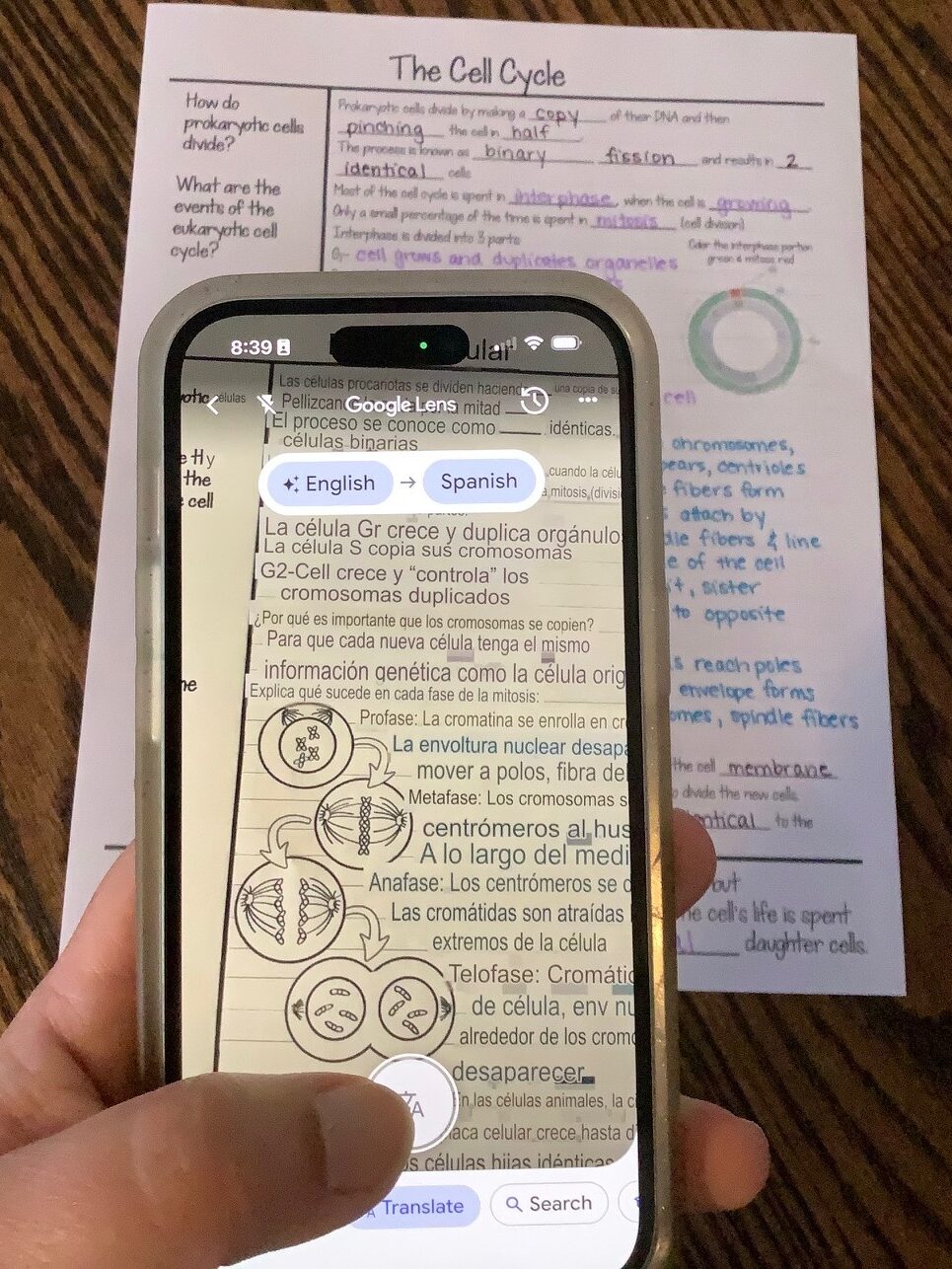
Step 3: Translate the PDF for Multilingual Learners
Tap “Translate” to convert the text into another language. Lens overlays the translated text right on top of the original page, making it easy for students to follow along without formatting issues.
This supports:
- Newcomer ELLs
- Students fluent in another language
- Families who need translated materials at home
- Students who want to check comprehension in their home language
Step 4: Copy the Text into Google Docs for Full Accessibility
This is where the magic happens for teachers.
After scanning:
- Tap “Select All”.
- Tap “Copy” or “Copy to Computer”.
- Paste into Google Docs.
Now you can:
- Increase font size
- Add headings for screen readers
- Adjust spacing and contrast
- Simplify or scaffold the language
- Add alt text to images
You’ve just turned an inaccessible PDF into a fully accessible, editable document.
Using Google Lens Directly in Chrome
If your students don’t have access to tablets or phones in the classroom, there’s still a super simple way to use Google Lens on their computers. Chrome has Google Lens built right in, which makes it incredibly easy to extract text, translate content, or get definitions without even leaving the page.
How to Use Google Lens in Chrome
- Open your PDF in Google Chrome.
- Right-click anywhere on the page.
- Select “Search image with Google Lens.”
- A Lens panel opens on the right side of your screen.
- Choose what you want to do:
- Copy text
- Translate
- Search for related information
Chrome treats each PDF page like an image, so Lens can detect and extract text even when the PDF itself isn’t accessible. The real benefit of Google Lens within Chrome is that students are supported without switching devices.
Accessibility doesn’t have to be complicated or time-consuming. With Google Lens (on your phone or directly inside Chrome) you can transform any PDF into a readable, translatable, accessible resource in seconds. Whether you’re supporting visually-impaired students, multilingual learners, or anyone who needs a different way to access text, this workflow is a simple, powerful addition to your teaching toolkit.
Looking for a Classroom-Ready, Accessible Science Curriculum?
My full high school science curricula are ready to use with Google Lens so you can reach all your learners with student-friendly scaffolded notes, hands-on investigations, and differentiated assessments. Check them out here:
- Full Biology Curriculum
- Full Chemistry Curriculum
- Full Anatomy & Physiology Curriculum
- Full Environmental Science Curriculum
*Note: Google and Google Lens are trademarks of Google LLC. This blog post is an independent educational resource and is not sponsored, supported, or endorsed by Google. All opinions, recommendations, and science teaching materials referenced here are mine and are not affiliated with or reviewed by Google.